
You can override your homepage contents using the Elementor Page Builder Settings
Note: You’ll need to install Elementor Page Builder plugin to display this settings.
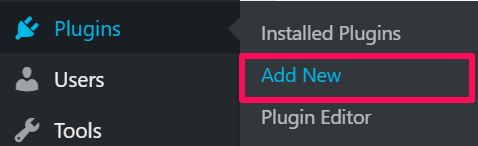
- Go to Plugins> Add New
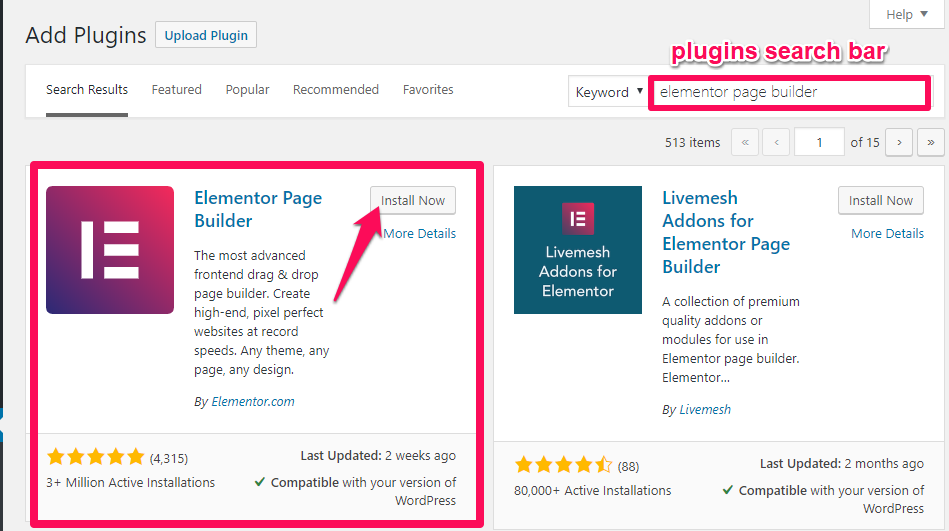
- Enter Elementor Page Builder in the plugin search bar.
- Install and activate the plugin.
Now, follow the below steps to configure Elementor Page Builder Settings.
- Go to Appearance > Customize > Elementor Page Builder Settings
- Check Enable Elementor Page Builder in FrontPage. (Blue is enabled)
- Click Publish.
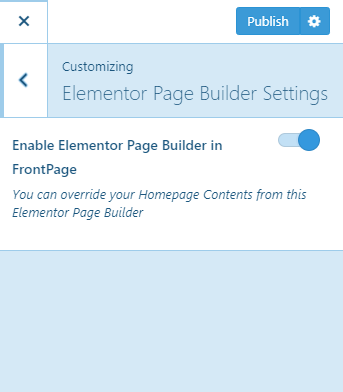
Enable Elementor Page Builder Settings
Once you check Enable Elementor Page Builder in Frontpage, follow the below steps to override your Homepage Contents using Elementor
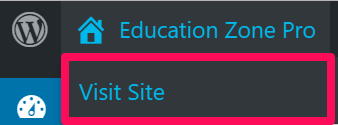
- Go to Dashboard > Visit Site
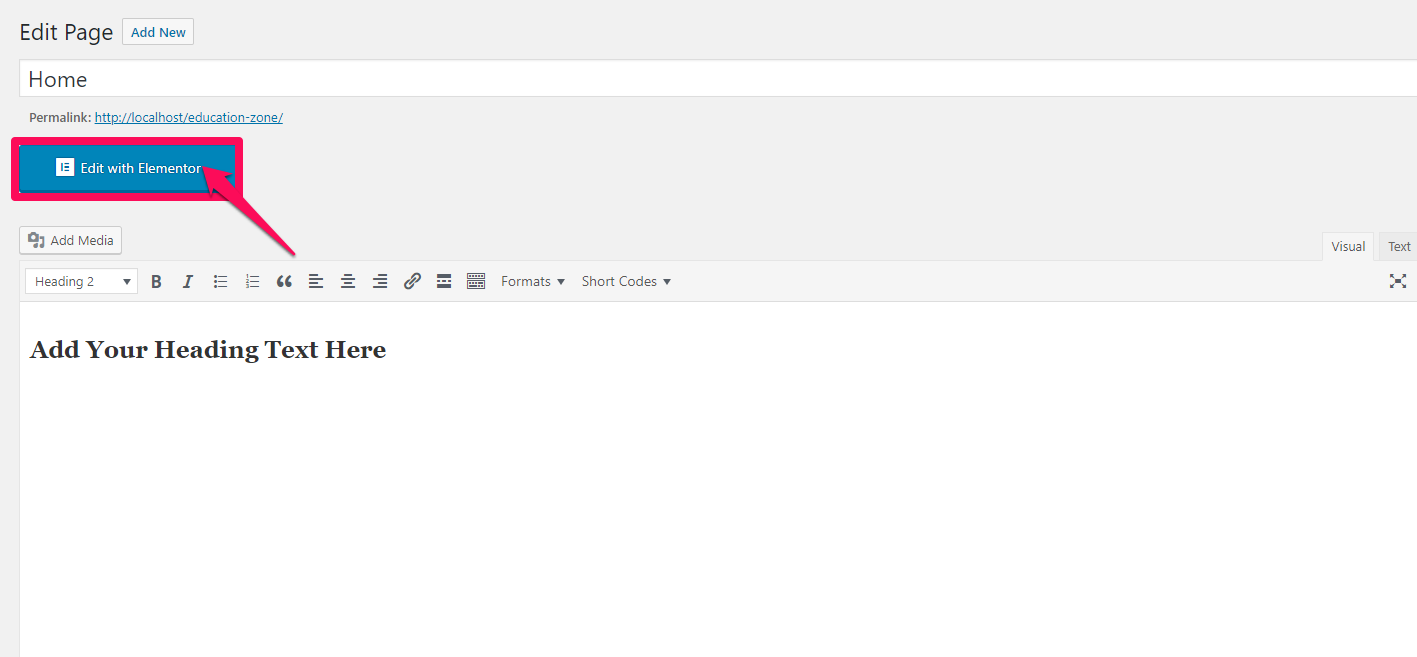
- Click on Edit Page. (This will take you to your homepage)

- Click on Edit with Elementor
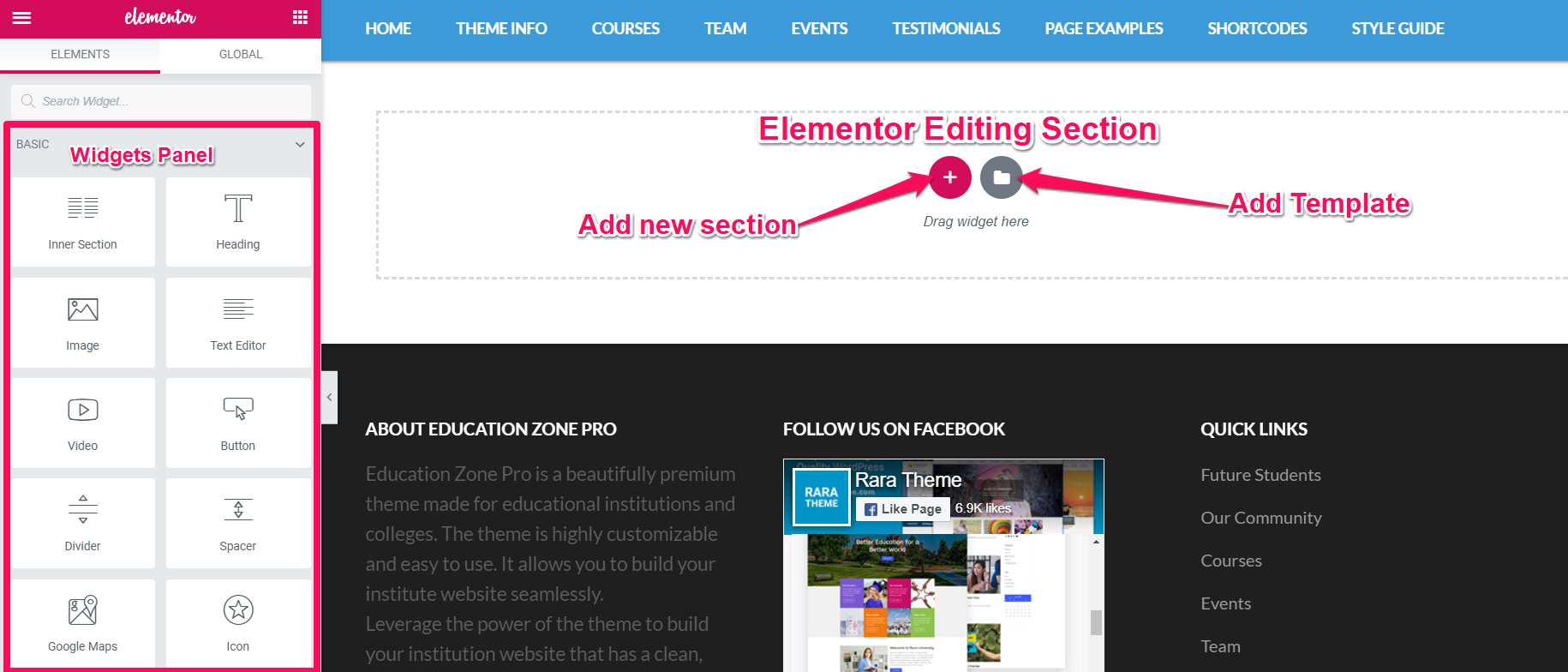
- Now you can override your Frontpage using Elementor
- Click the
 icon to add New Section. Likewise, click the
  icon to add a Template.
 - You can also drag widget from the Widget Panel to your editing area
- When you are done, click Publish/Update at the bottom of the Widget Panel
For a more detailed documentation on customizing via Elementor click here.
Revert to Default Editor
- Go to your Homepage.
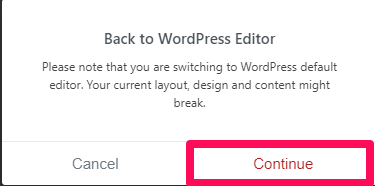
- Click Back to WordPress Editor
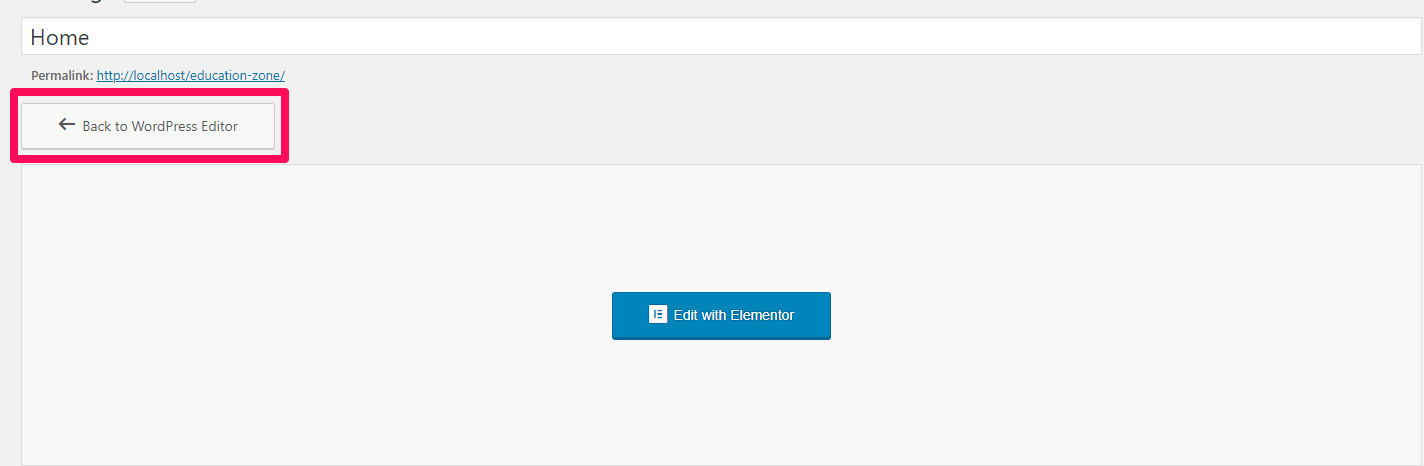
- Click Continue to go switch to your default editor.