
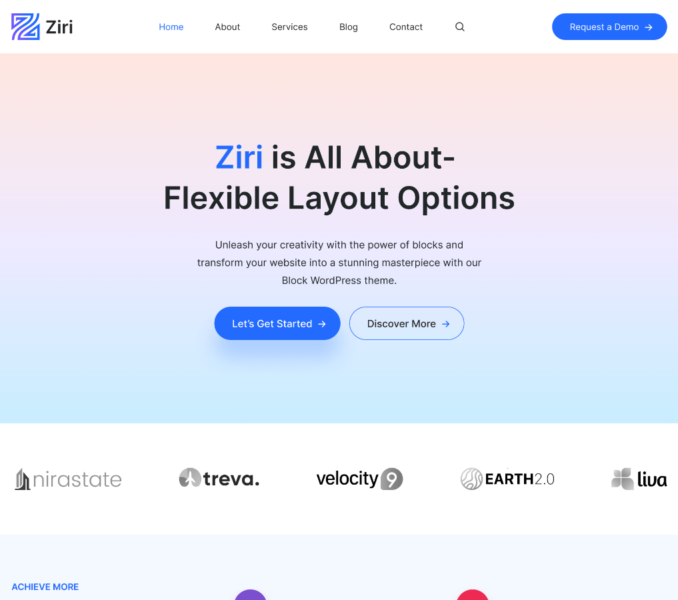
You can change the default color settings for all the elements of your website from the Site Editor.
The below listed are the steps to be followed for changing the theme colors:
- Navigate to Admin Dashboard > Appearance > Editor.
- Click on the Styles icon in the top right corner and click on the Colors.
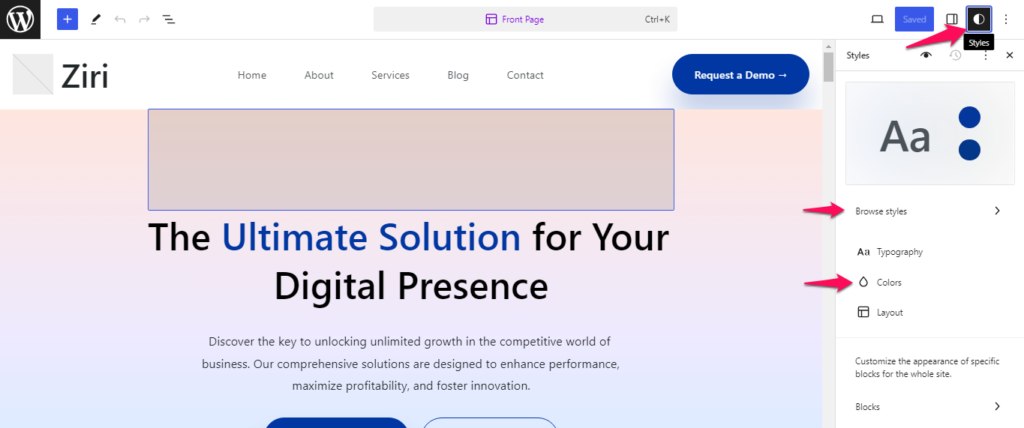
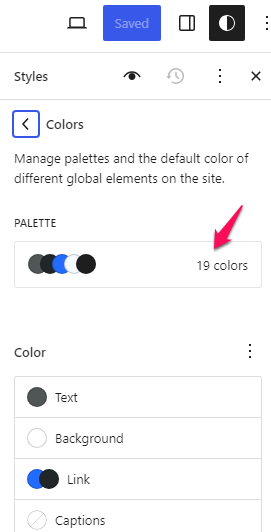
Further, you can choose to edit the the theme’s default color palette as well as change the default color set for different elements used in the theme such as text, links, headings, etc.
- Click on the Palette option under color block.
- Click the three dots icon ⋮ under Solid tab and then click Show details.
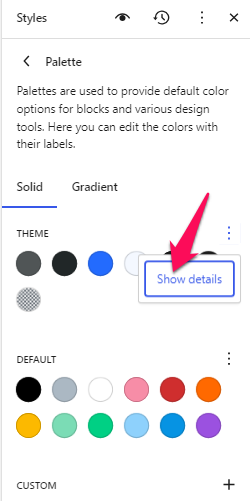
- You can click on each available section to change the assigned color.
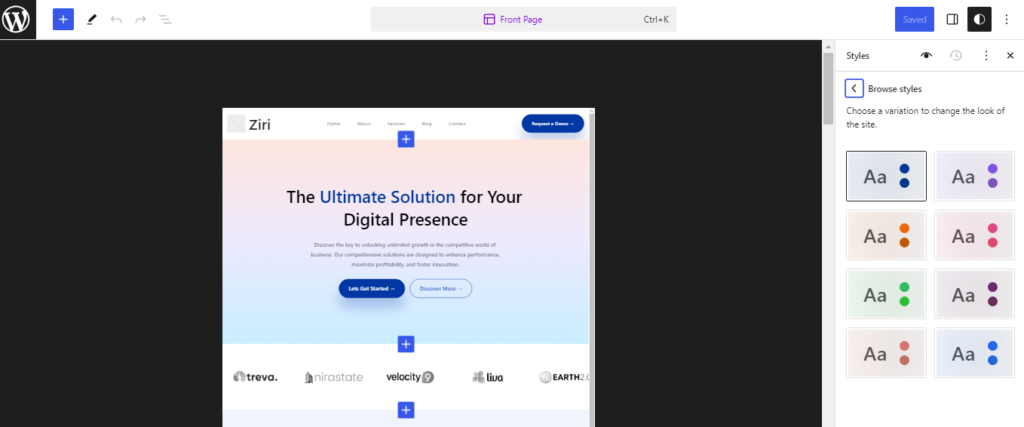
Additionally, you have the option to select “Browse styles” to change the site’s color variations.
6. Finally, click on Save to publish the changes made.