

Go to Appearance> Customize> Contact Page Settings to configure different aspects of Contact Page
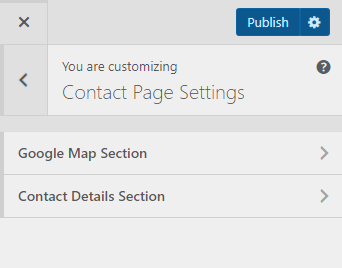
Google Map Section
Please follow the following steps to configure Google Map Section:
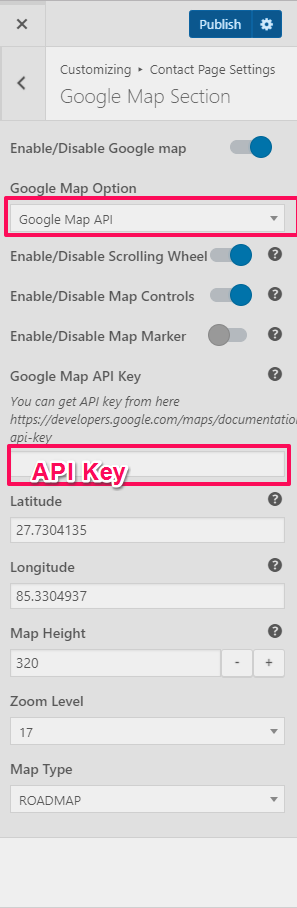
- Go to Appearance> Customize> Contact Page Settings>Google Map Section
- Select Google Map Option
Google Map API
- Enable Scrolling Wheel to display a scrolling wheel on the map
- Enable Map Controls to display map controls
- Enable Map Marker to display map marker
- Enter the Google Map API key. (You can get API key from here)
- Enter latitude and longitude of the location
- Enter the Map Height to be displayed on the contact page
- Select Zoom Level and Map Type
- Click on Publish
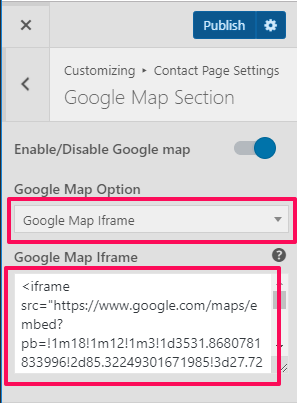
Google Map iFrame
- Enter Google Map iFrame
- Enter the iFrame code in the Google Map IFrame box.
- Click on Publish.
Contact Details Section
Please follow the below steps to configure Contact Details Section
- Go to Appearance> Customize> Contact Page Settings>Contact Details
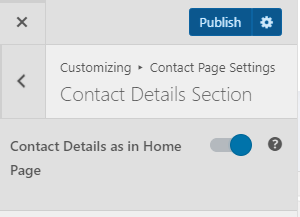
- Enable Contact Details as in Home Page to use details from home page contact us setting. (Blue is enabled)
OR
- Disable Contact Details as in Home Page to manually enter Contact Info Title, Content, Address, Phone, Fax, and Email
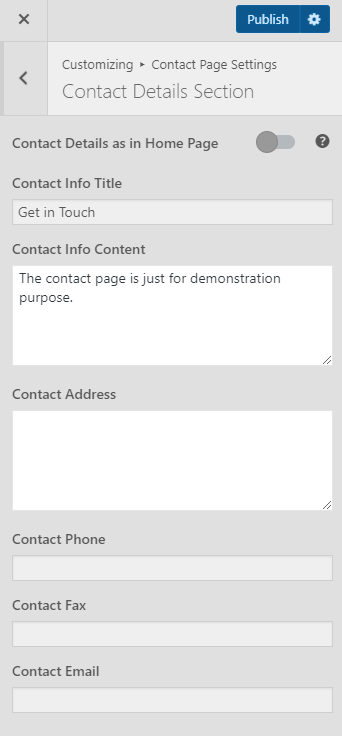
- Click Publish