Documentation

Menu
  • Home
  • Documentation

Travelholic

Getting Started

  • Introduction
  • WordPress Requirements and Checklists

Theme Installation and Activation

  • How to Install & Activate Travelholic WordPress Theme?
  • How to Import Demo Content?
  • Recommended Plugins
  • What are the Recommended Image Sizes?

Configure Header and Footer Section

  • How to Configure Site Logo/Name & Tagline for your website?
  • How to Add Footer Widgets?
  • How To Create & Edit Navigation Menu?
  • How to Add Social Links in the Header?
  • How to Configure Copyright Settings?
  • How to Enable Header Search?

Appearance Settings

  • How to Change Website Colors?
  • How to Change Website Background?
  • How to Configure Typography Settings?

General Settings

  • How to Configure Banner Section?
  • How to Configure Featured Area Section?
  • How to Configure Newsletter Settings?
  • How to Configure Instagram Settings?

Single Page/Post Settings

  • How to Create Page/Post?
  • How to Configure Single Page/Post Settings?

SEO and Performance Settings

  • How to Add Google Analytics Code to your website?
  • How to configure SEO Setting?
HomeTravelholic Appearance Settings How to Change Website Colors?

How to Change Website Colors?

Last updated July 1, 2022June 20, 2022

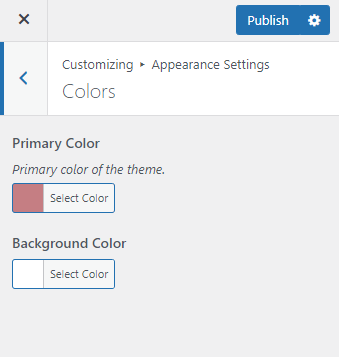
Please follow the below steps to change website colors:

  • Go to Appearance > Customize > Appearance Settings > Colors
  • Select the desired Primary Color.
  • Select the desired Background Color.
  • Click Publish. 

Doc navigation

How to Change Website Background? →
Still stuck? How can we help?
Was this article helpful for you?
Documentation. Copyright © 2015 - 2026 All Rights Reserved. Made with in Nepal.