Documentation

Menu
  • Home
  • Documentation

Kalon Documentation

Getting Started

  • Introduction
  • WordPress Requirements and Checklists

Theme Installation & Activation

  • How to Install & Activate Kalon WordPress Theme?
  • Recommended Plugins
  • What are the Recommended Image Sizes?
  • How to Import Demo Content?

Configure Header & Footer Section

  • How to configure Site Logo/ Name & Tagline to your website?
  • How to Create & Edit Navigation Menu?
  • How to Add Footer Widgets?

Appearance Settings

  • How to Change Website Colors?
  • How to Change Background Image?
  • How to configure social Media on your website?
  • How to Configure Slider Settings?

Homepage Settings

  • How to Set up the Front/Landing/Home Page and Blog Page?

SEO and Performance Settings

  • How to Add Google Analytics to your website?

FAQs

  • How to Configure Footer Settings?
  • How to add Additional CSS Codes?
  • How to change the Logo Size of your website?
  • Why is the Customizer not showing up?
  • How to Update Theme & Plugins?
HomeKalon Documentation Appearance Settings How to Change Website Colors?

How to Change Website Colors?

Last updated July 23, 2019July 23, 2019

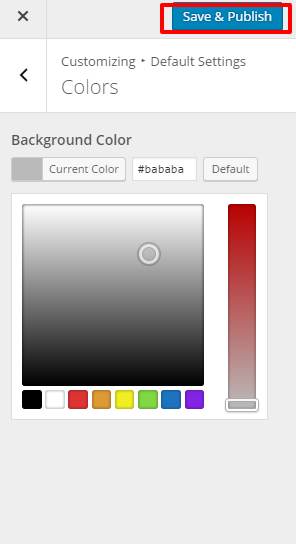
Please follow the given steps to change website colors:

  • Go to Appearance> Customize> Default Settings >Colors
  • Change the Background Color by clicking on the respective Select Color button
  • Click Save & Publish.

change colors kalon

Doc navigation

How to Change Background Image? →
Still stuck? How can we help?
Was this article helpful for you?
Documentation. Copyright © 2015 - 2026 All Rights Reserved. Made with in Nepal.