Documentation

Menu
  • Home
  • Documentation

Elegant Pink Documentation

elegant pink

Getting Started

  • Introduction
  • WordPress Requirements and Checklists

Theme Installation and Activation

  • How to Install & Activate Elegant Pink WordPress Theme?
  • What are the Recommended Image Sizes?
  • How to Import Demo Content?
  • Recommended Plugins

Configure Header and Footer Section

  • How to configure Site Logo/ Name & Tagline to your website?
  • How to Create & Edit Navigation Menu?
  • How to Add Footer Widgets?

Appearance Settings

  • How to Configure Website Colors?
  • How to Configure Background Image?
  • How to Configure Slider Settings?

Homepage Settings

  • How to Setup a Static Front Page?

General Settings

  • How to Configure Social Settings?
  • How to Configure Pagination Settings?

SEO and Performance Settings

  • How to Add Google Analytics to your website?

FAQs

  • How to add Custom Codes?
  • How to change the Logo Size of your website?
  • Why is the Customizer not showing up?
  • Why are my website images not loading?
  • How to Configure Footer Settings?
HomeElegant Pink Documentation FAQs How to add Custom Codes?

How to add Custom Codes?

Last updated July 26, 2019July 26, 2019

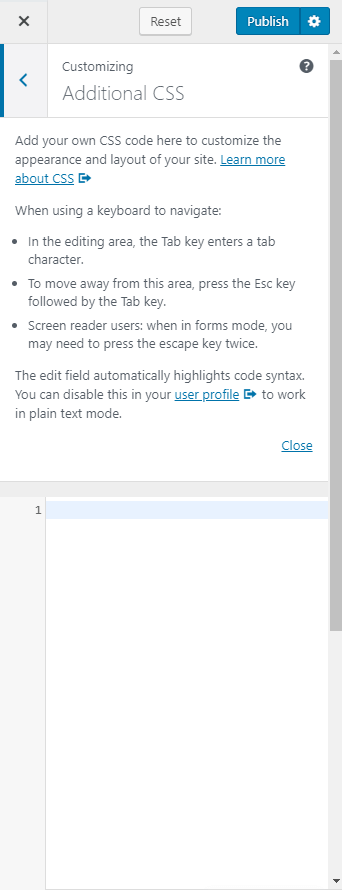
You can add extra CSS codes here. If you want to modify the color, fonts, or any other CSS effects, you can enter the code here.

  • Go to Appearance> Additional CSS
  • Enter your code
  • Click on Publish

Add additional css codes rara theme

Doc navigation

How to change the Logo Size of your website? →
Still stuck? How can we help?
Was this article helpful for you?
Documentation. Copyright © 2015 - 2026 All Rights Reserved. Made with in Nepal.