Documentation

Menu
  • Home
  • Documentation

The Minimal Documentation

the minimal

Getting Started

  • Introduction
  • WordPress Requirements

Theme Activation and Installation

  • How to Install & Activate The Minimal WordPress Theme?
  • Recommended Plugins
  • What are the Recommended Image Sizes?
  • How to Import Demo Content?

Configure Header and Footer Section

  • How to configure Site Logo/ Name & Tagline to your website?
  • How to Create & Edit Navigation Menu?
  • How to Add Footer Widgets?

Appearance Settings

  • How to Configure Website Colors?
  • How to Change Website Background Image?
  • How to Configure Slider Settings?

General Settings

  • How to Configure a Static Front Page?
  • How to Create a Post/Page?
  • How to Configure Social Settings?

SEO and Performance Settings

  • How to Add Google Analytics to your website?

FAQs

  • How to add Custom Codes?
  • How to change the Logo Size of your website?
  • Why is the Customizer not showing up?
  • How to Update Theme & Plugins?
HomeThe Minimal Documentation Appearance Settings How to Configure Website Colors?

How to Configure Website Colors?

Last updated December 16, 2019July 19, 2019

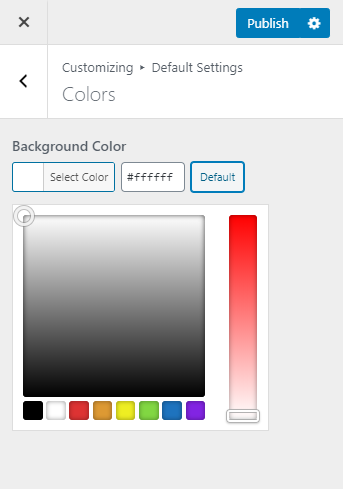
Please follow the below steps to configure Website Colors

  • Go to Appearance> Customize> Default Settings >Colors
  • Change the Background Color by clicking on the respective Select Color button
  • Click Publish.

colors the minimal

Doc navigation

How to Change Website Background Image? →
Still stuck? How can we help?
Was this article helpful for you?
Documentation. Copyright © 2015 - 2026 All Rights Reserved. Made with in Nepal.